
Run your first week in ShiftPriority

A practical guide for managers and teams. Start with the four-step setup, then use the quick guides whenever a workflow is new.

Publish your first schedule

These four steps take a new workspace from empty to a schedule the team can actually see.

  1. 1

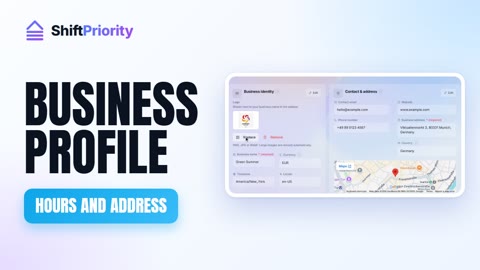
    Set the business basics

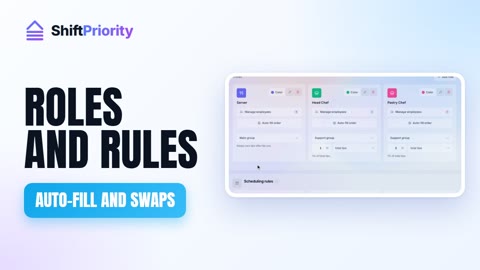
    Open Settings and confirm your timezone, currency, business hours, departments, and roles before you schedule anyone.

    Open Settings →
  2. 2

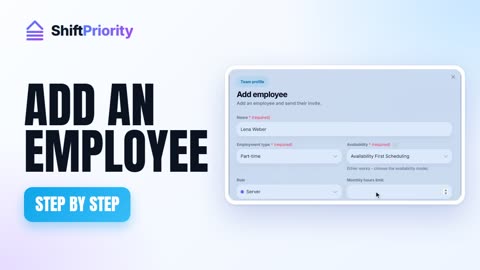
    Add and invite the team

    Create each employee with an email address. ShiftPriority sends their invite automatically so they can set a password and sign in.

    Open Employees →
  3. 3

    Build the week as drafts

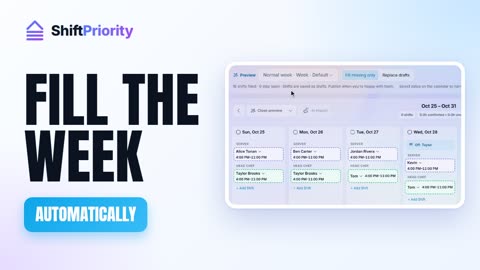
    Add shifts in Schedule or use Quick schedule from employee templates. Drafts stay private while you check coverage and availability.

    Open Schedule →
  4. 4

    Review and publish

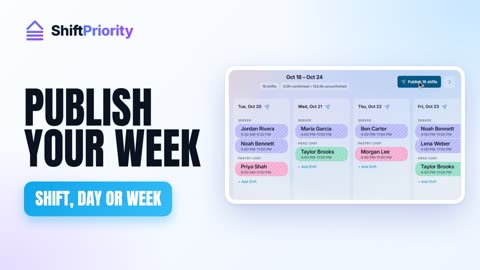
    Resolve conflicts, then publish a shift, day, or full week. Employees see only published shifts and receive the update automatically.

    Publish the week →

Quick guides for everyday work

Each guide follows the shortest reliable path through the product.

01

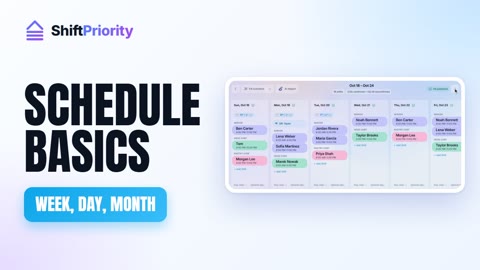
Scheduling

Build, review, publish, and change a rota without surprising the team.

  • Use Month to spot coverage, Week to build the rota, and Day for detailed work.
  • Draft changes remain manager-only until you publish them.
  • After a published shift changes, publish again so employees receive the new time.
02

Team and availability

Keep the roster accurate before it reaches the schedule.

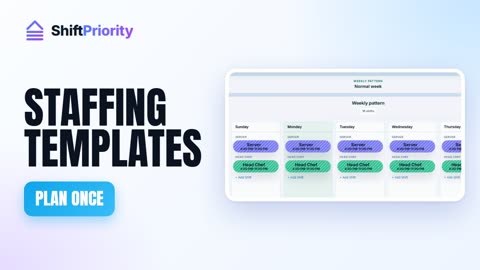
  • Set roles, departments, hourly rates, and weekly templates from Employees.
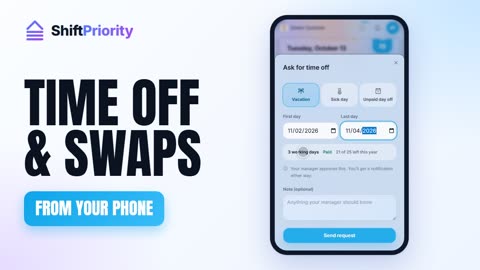
  • Employees submit availability and time-off requests from their Requests page.
  • Approve requests before building the affected week so conflicts are caught early.

03

Tips and payouts

Turn daily sales and worked hours into an auditable payout list.

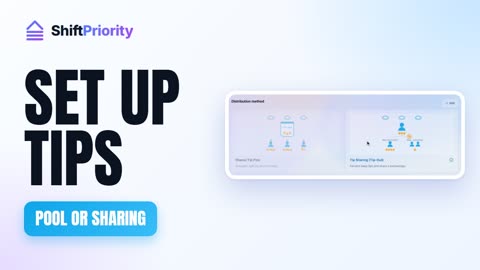
  • Choose Tip Jar or Percentage Tip-Out under Settings → Tip distribution.
  • Record or sync the day's sales and confirm worked hours.
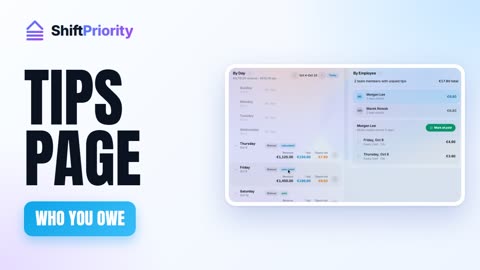
  • Review the calculation on Tips, then mark each payout when it is handed out.

04

Time clock and timesheets

Capture real attendance and resolve exceptions before reporting hours.

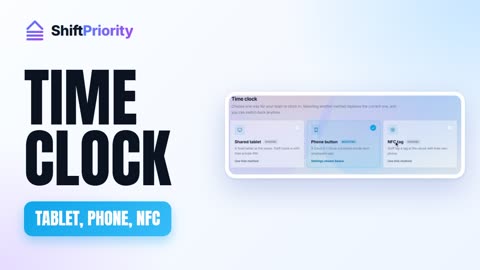
  • Pair a venue tablet under Settings → Time Clock.
  • Employees clock in and out on the paired kiosk.
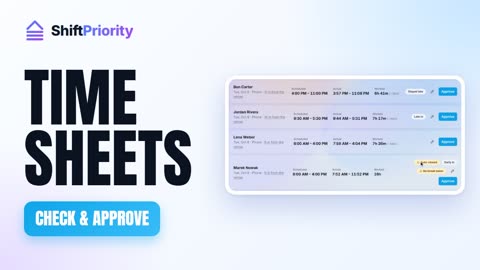
  • Managers review missed punches and no-shows from Timesheets.

05

POS and stock

Connect supported sales data without mixing two sources of truth.

  • Connect Square or SumUp under Settings → Integrations.
  • For Square, map catalog items and categories after the first sync.
  • Use reconciliation when a day looks incomplete instead of editing synced totals by hand.

06

Chat, announcements, and requests

Use the right channel for updates, conversations, and approvals.

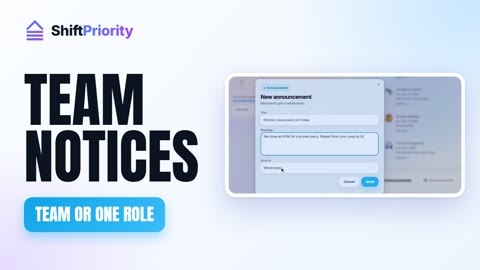
  • Announcements are one-way notices for the whole team or selected people.
  • Chat is for ongoing team or direct conversations.
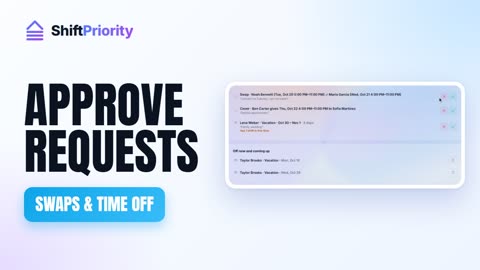
  • Shift swaps, cover, availability, and time off stay in Requests so every decision is tracked.

Employee portal

The employee essentials

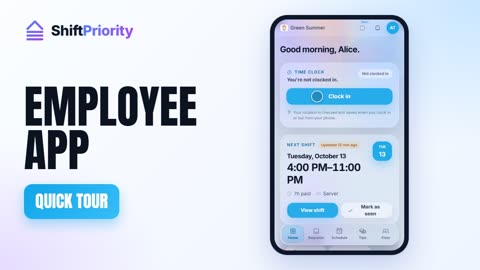
Employees use the same email-and-password sign-in as managers, then land in a focused portal for their own work.

  1. 1Schedule shows published shifts and exports them to a personal calendar.
  2. 2Requests handles cover, swaps, availability, and time off.
  3. 3Tips shows personal pending and paid amounts; Chat keeps workplace conversations together.

Give your team back their Sundays

Stop wrestling spreadsheets. Build your first schedule this afternoon - and see your labor cost the moment you publish.

Get started free →

Free during our open beta · Set up in minutes · No credit card